
How to order and configure Sectigo ACME Certificate-as-a-Service.
PrintSectigo ACME Certificate-as-a-Service is a service that enables automated issuance and renewal of SSL certificates using the ACME protocol.
After purchasing the service, you must configure the domains that will be protected and then use the ACME credentials to install the certificate on your server.
1. Order Placement
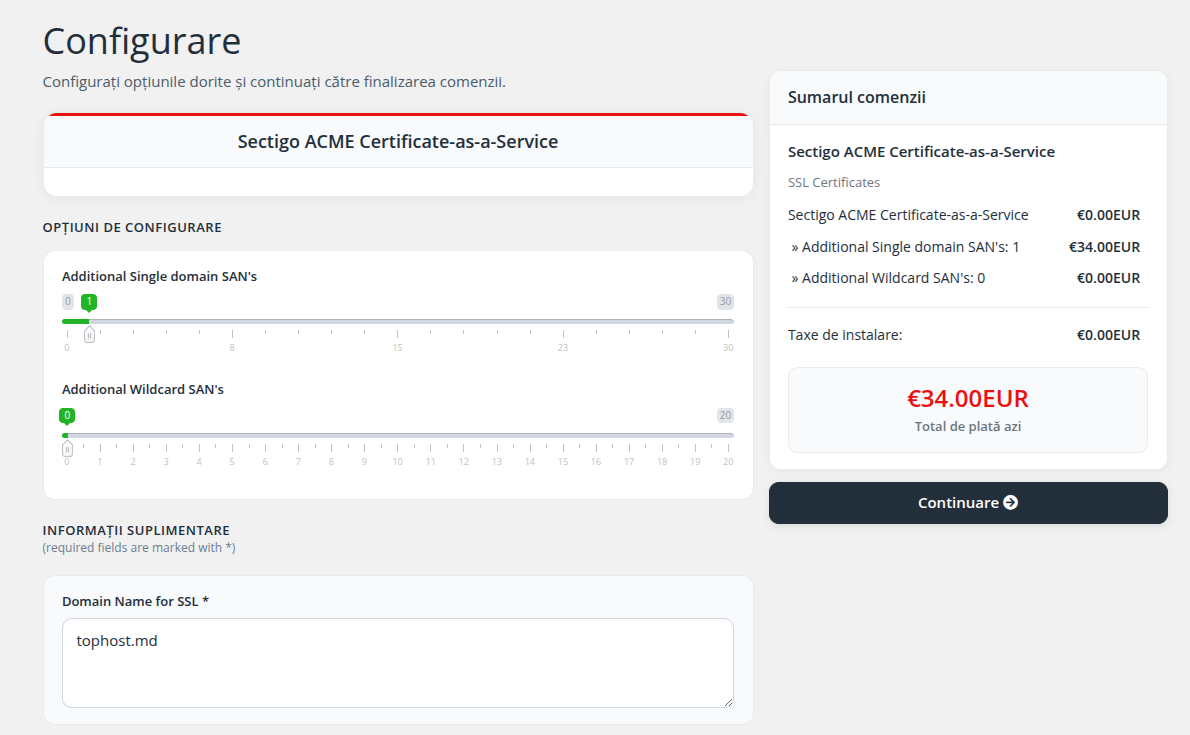
After selecting the Sectigo ACME Certificate-as-a-Service product, the configuration page will open.
Additional Single Domain SANs
This option allows adding additional SAN domains.
Examples:
- example.com
- mail.example.com
- shop.example.com
Select the number of additional domains you need.
Additional Wildcard SANs
This option allows adding Wildcard certificates.
Example:
*.example.comThis will automatically secure:
- www.example.com
- mail.example.com
- shop.example.com
Select the required number of Wildcard certificates.
2. Additional Information
Domain Name for SSL is a required field.
Enter the main domain you want to secure.
Example:
tophost.mdThe www version is added automatically at no extra cost.
On the right side, you can see the order summary and total cost.
After verifying the information, click Continue.
3. Service Activation
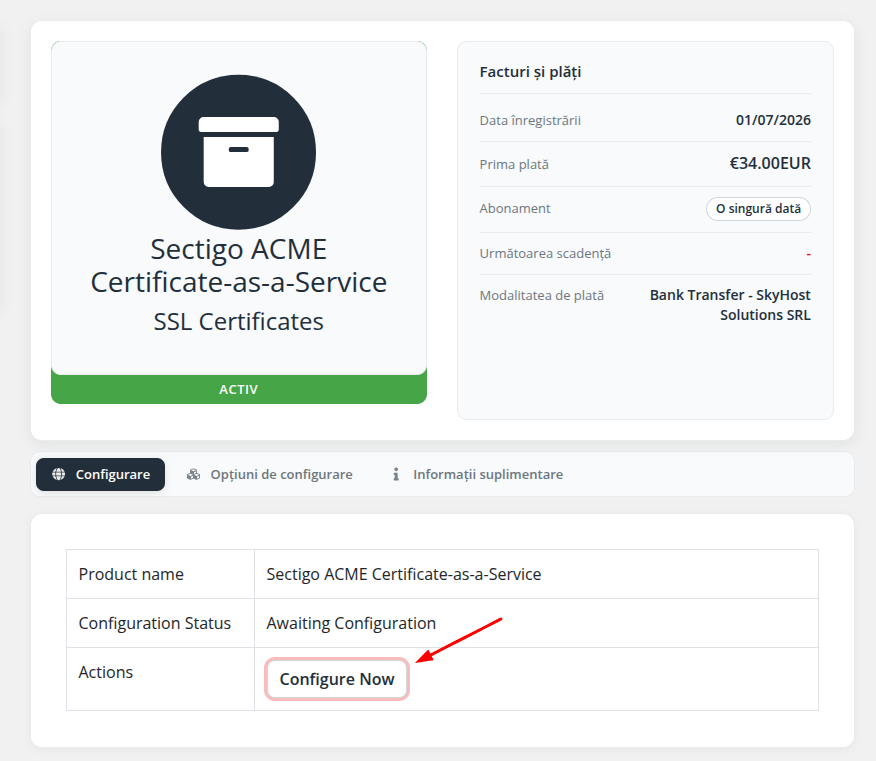
After payment confirmation, the service will appear in your account.
Go to:
Client Area → Services → Sectigo ACME Certificate-as-a-ServiceInitial status will be:
Configuration Status: Awaiting ConfigurationClick Configure Now to proceed.
4. Domain Configuration
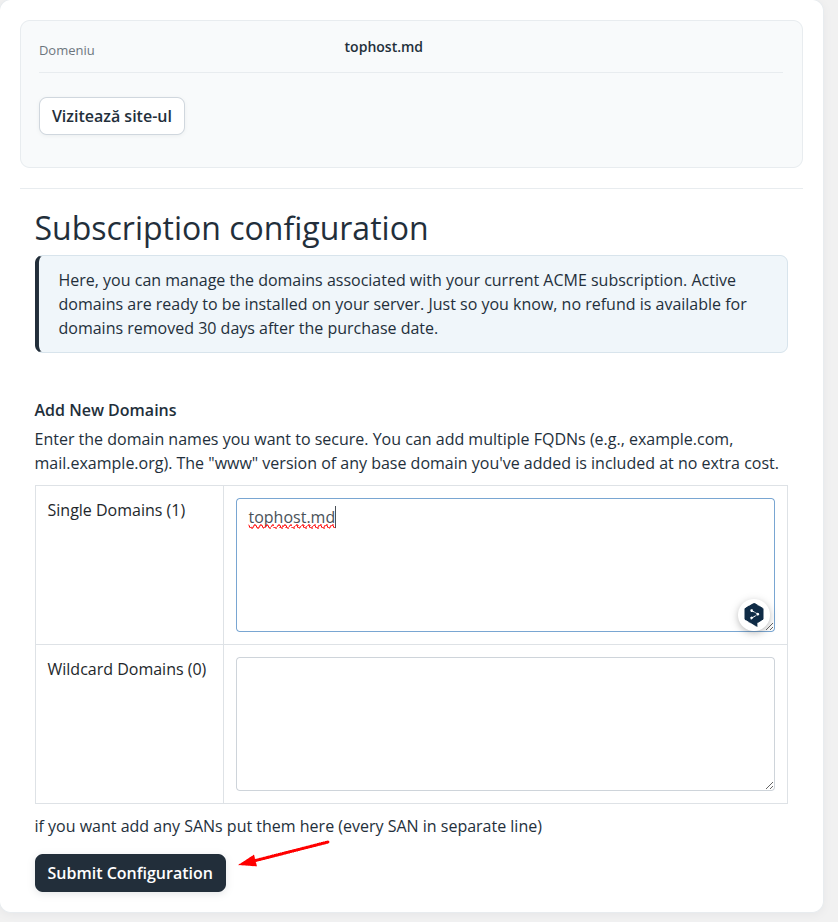
In the Subscription configuration page, enter the domains that will be included in the SSL certificate.
Example:
tophost.md
mail.tophost.md
shop.tophost.md
For Wildcard certificates use:
*.tophost.mdAfter entering the domains, click Submit Configuration.
5. ACME Credentials
After configuration, the service becomes active.
In the SSL Orders Summary section, you will find:
- ACME Account ID
- EAB MAC ID
- EAB MAC Key
- Server URL
ACME Server URL:
https://acme.sectigo.com/v2/DV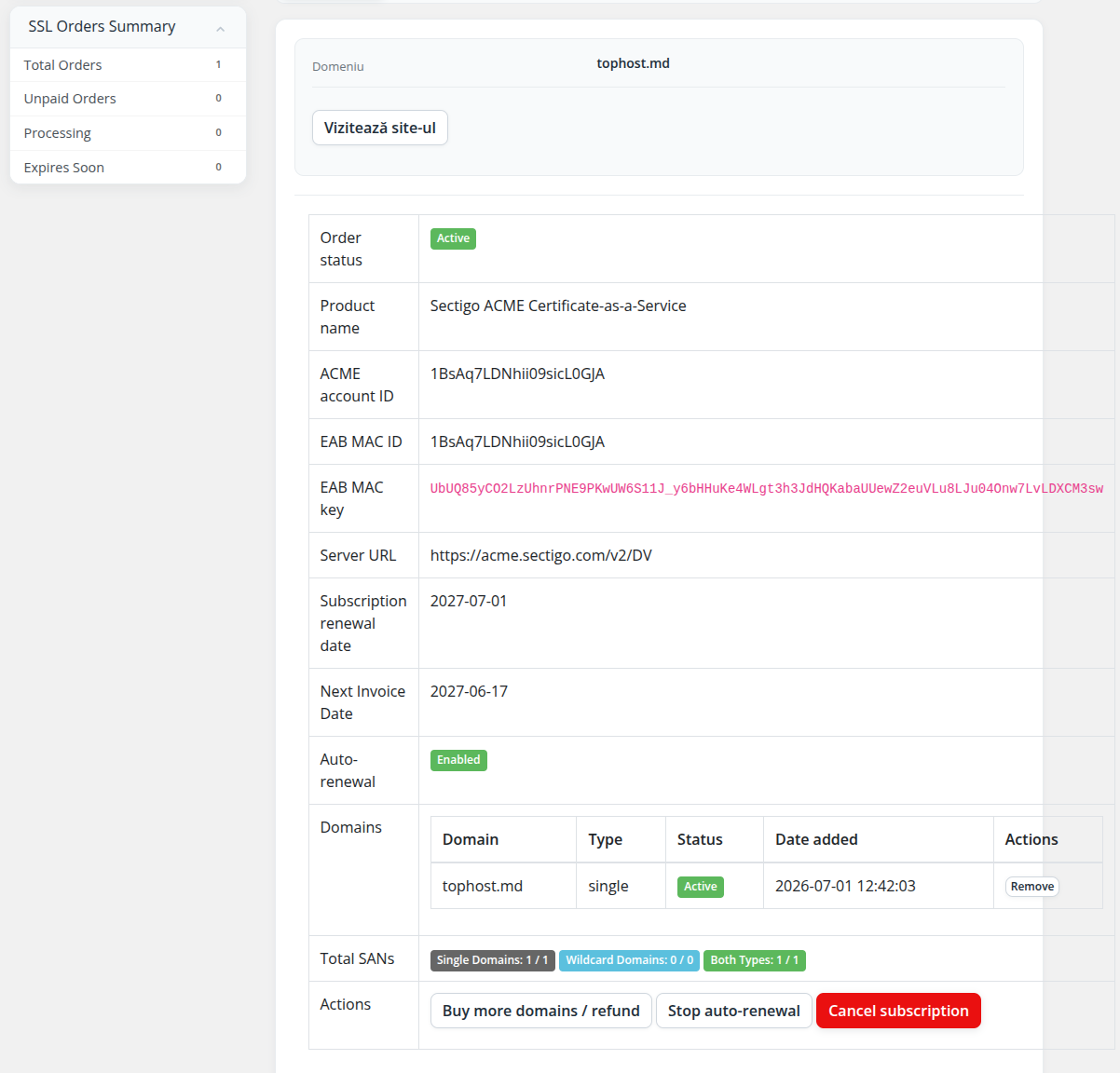
6. SSL Certificate Installation
ACME credentials can be used with:
- Certbot
- acme.sh
- cPanel AutoSSL
- other ACME-compatible clients
Required data:
- ACME Account ID
- EAB MAC ID
- EAB MAC Key
- Server URL
Example Certbot configuration:
certbot certonly --webroot \
-w /home/CPANEL_USER/public_html \
--non-interactive --agree-tos \
--email info@tophost.md \
--server https://acme.sectigo.com/v2/DV \
--eab-kid 1BsAq7LDNhii09sicL0GJA \
--eab-hmac-key UbUQ85yCO2LzUhnrPNE9PKwUW6S11J_y6bHHuKe4WLgt3h3JdHQKabaUUewZ2euVLu8LJu04Onw7LvLDXCM3sw \
--domain tophost.md \
--domain www.tophost.md \
--cert-name tophost.md
After configuration, the ACME client will automatically handle SSL issuance and renewal.
For installation guides on your server, please refer to the appropriate documentation below depending on your platform:
- ACME installation (ACME.sh) on cPanel Hosting
- ACME installation (Certbot) for Apache & NGINX
- SSL installation on LiteSpeed using ACME
- SSL installation on Node.js using ACME
- ACME SSL installation on Windows IIS (Win-ACME)
If you use another platform or encounter issues, please contact our support team for assistance.
