
How to order and configure an SSL Certificate
PrintStep 1: Configure the order.
Choose the desired SSL certificate type.
Select the billing period (usually Annually).
Enter the domain name for which you want to issue the certificate (Domain Name for SSL *).
For Wildcard certificates, enter the domain name in the following format *.your-domain.com
Verify the amount and click Continue.
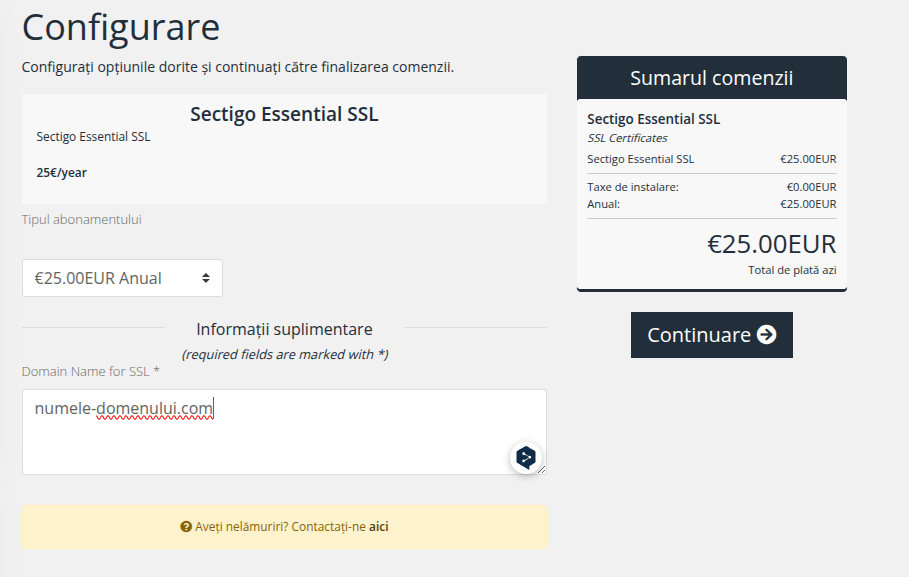
Step 2: Access the configuration page.
After completing the order, log in to your account and open the SSL service from the list of products.
Click the Awaiting Configuration button.

Then click the Manage or Configure Now button.
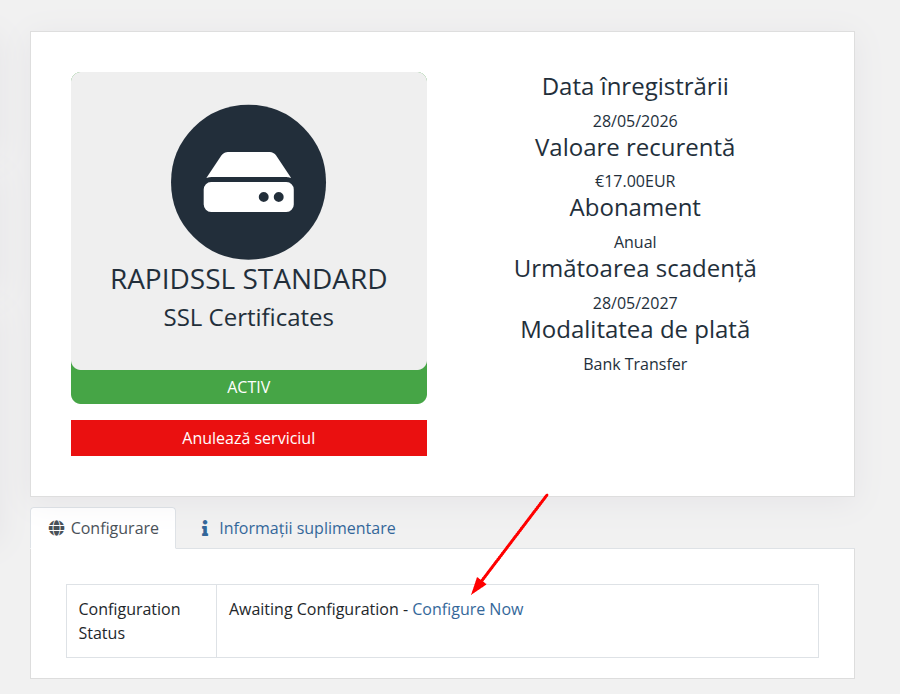
Step 3: Fill in the contact information.
Enter the administrative information (this information is not included in the certificate and is used only for communication purposes):
First Name, Last Name, Organization Name
Email Address
Full Address, City, Postal Code, Country, Phone Number
Click Continue.
Step 4: Enter the CSR (Certificate Signing Request).
This is one of the most important steps.
What is a CSR?
A CSR (Certificate Signing Request) is a certificate signing request — a block of text generated on the server where the SSL certificate will be installed. It contains information about the domain and the public key.
What should you do?
If you already have a generated CSR, copy it entirely (including the lines -----BEGIN CERTIFICATE REQUEST----- and -----END CERTIFICATE REQUEST-----) and paste it into the appropriate field.
If you do not have a CSR, click the Generate CSR button (the system will generate it automatically).
Select New Order or Renew (if you are renewing an existing certificate).
Important: Carefully verify all information before proceeding, as it cannot be modified after the certificate has been issued.
Step 5: Domain Validation (DCV).
The certificate provider will require validation of your control over the domain.
In most cases, this is done using the DNS method:
Add the TXT (or CNAME) record provided in the control panel.
Example:
your-domain.com. IN TXT "long_unique_value"
After adding the DNS record, wait 5–30 minutes (sometimes longer) and then click Revalidate or Verify.
Step 6: Order Processing.
Wait until the status changes from Processing / Awaiting Configuration to Active.
This usually takes from a few minutes to several hours.
Step 7: Download the certificates.
When the certificate status becomes Active:
Download the following files:
Download Certificate (the .crt file).
Download Intermediate/Chain (the intermediate certificate).
Download PEM (recommended for installation).
Get Private Key (the private key).
You can now install the SSL certificate on your server.
