
SSH access on cPanel hosting: enabling it, Terminal and SSH clients
PrintIn short: on TopHost shared hosting, SSH is turned off by default for security reasons and is enabled on request through a ticket. Once it is on, you can work on the command line in two ways: in the browser with the Terminal in cPanel, or from a program on your computer that connects to port 49786 with your cPanel user name.
What SSH is good for on shared hosting
- unpacking or creating large archives faster than in File Manager;
- exporting or importing a large database with
mysqldumpandmysql; - finding what takes up space, for example with
du -sh *; - working with tools such as Composer, git or WP-CLI, where they are available on the server;
- changing permissions or searching through many files at once.
You work with the rights of your own account. There is no root access and system packages cannot be installed; for that you need a VPS. Node.js and Python applications are set up with the cPanel tools described in the Node.js guide and the Python guide.
Step 1. Ask us to enable SSH
Open a ticket from the client area and write the domain or the cPanel user name of the account. We will reply when access is active.
Step 2, option A. Terminal in cPanel
- Log in to cPanel and, in the Advanced section, click Terminal.
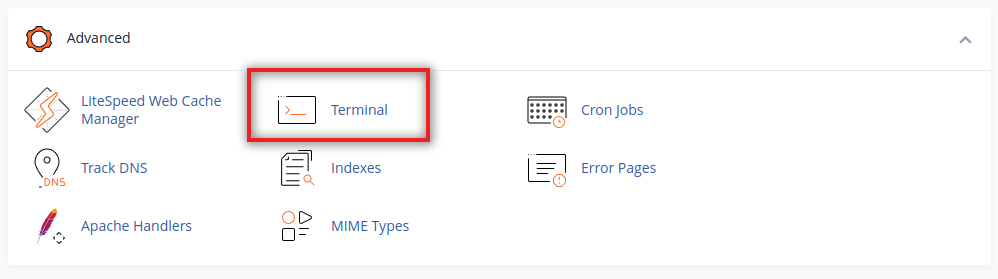
- The first time, cPanel shows a warning about working on the command line. Confirm with I understand and want to proceed.
- A command line opens in the browser, in your home folder
/home/username. No program and no password are needed.
Step 2, option B. An SSH program on your computer
You need four details:
| Detail | Value |
|---|---|
| Server | the server name from the hosting activation e-mail, or your domain if it points to our server |
| Port | 49786 (not the usual 22) |
| User name | your cPanel user name, not an e-mail address |
| Password or key | the cPanel password, or an SSH key authorised in cPanel |
Windows 10 and 11
Windows already includes an SSH client. Open PowerShell or Command Prompt and type:
ssh -p 49786 username@server
If you prefer PuTTY: fill in Host Name with the server, Port with 49786, keep the connection type SSH, click Open and enter the user name at login as.
macOS and Linux
Open the Terminal application and run the same command: ssh -p 49786 username@server.
On the first connection the program shows the server's fingerprint and asks whether to trust it. Type yes. While you type the password nothing appears on screen; this is normal.
Logging in with a key instead of a password
A key is safer than a password and saves typing. Two ways to set it up:
- Key made on your computer (recommended). Run
ssh-keygen -t rsa -b 4096and protect the key with a passphrase. In cPanel open Security, then SSH Access, then Manage SSH Keys, click Import Key and paste the content of the.pubfile. Back in the list, click Manage next to the key and then Authorize. - Key made in cPanel. On the same page, click Generate a New Key, set a passphrase and create it, then authorise it as above. Download the private key with View/Download. For PuTTY, convert it to the PPK format on the same page or with PuTTYgen.
Connect with the key like this: ssh -p 49786 -i ~/.ssh/id_rsa username@server. Never send the private key to anyone, including our support.
If the connection fails
- Timeout or connection refused: SSH has not been enabled yet, the port is wrong, or the firewall has blocked your IP address after several failed logins. The causes of such blocks are listed in the firewall article; write your IP address in a ticket and we will check it.
- Permission denied: the user name or password is wrong, or the key was imported but not authorised. If you have forgotten the cPanel password, see where to reset passwords.
- A command stops on its own: very heavy commands are limited by the resources of the hosting account. Split the work into smaller parts or run it outside busy hours.
Work carefully: commands such as rm -rf delete files immediately, with no trash folder. Make a backup before larger changes and close the session when you are done.
SSH on a VPS
On a VPS you have root access from the start, without a ticket. See the first SSH connection to a VPS and, if the server does not answer, the VPS connection check.
