
Add a domain in cPanel: primary, addon, subdomain and alias explained
PrintIn short: in cPanel open Domains, then Domains again, click Create A New Domain, type the domain name, untick Share document root if it is a separate website, and click Submit. The site starts opening as soon as the domain points to your TopHost hosting.
A TopHost hosting plan is not limited to one website. Your cPanel account is built around the domain you named when ordering, but it can carry as many extra domains as you like, each with its own site and mailboxes. Shared hosting plans have no cap on the number of domains; what matters is that the plan's resources are enough for all the sites together.
The four kinds of domain cPanel knows
| Kind | Example | What it is |
|---|---|---|
| Primary domain | company.md | The domain given at order time. Its site normally lives in public_html. |
| Addon domain | side-project.com | A fully separate site with its own folder inside the same account. |
| Subdomain | shop.company.md | Part of an existing domain, good for a shop, a blog or a test copy. |
| Alias | company.com | One more name for the same content: it shows exactly the site of company.md. |
All three extra kinds are created from the same cPanel form; what tells them apart is the name you type and the Share document root box.
What you need first
- A registered domain. It can be registered with TopHost or with any other registrar.
- A plan for its DNS: either set its nameservers to
ns4.tophost.mdandns5.tophost.md(the simplest way), or point its A record to the IP address of your hosting, shown in cPanel under General Information.
Adding the domain, step by step
- Log in to cPanel and find the Domains section.
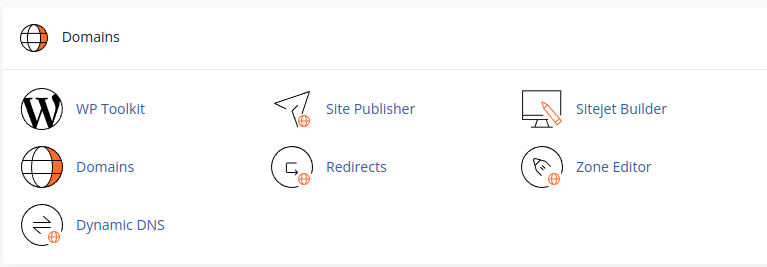
- Click Domains, then Create A New Domain.
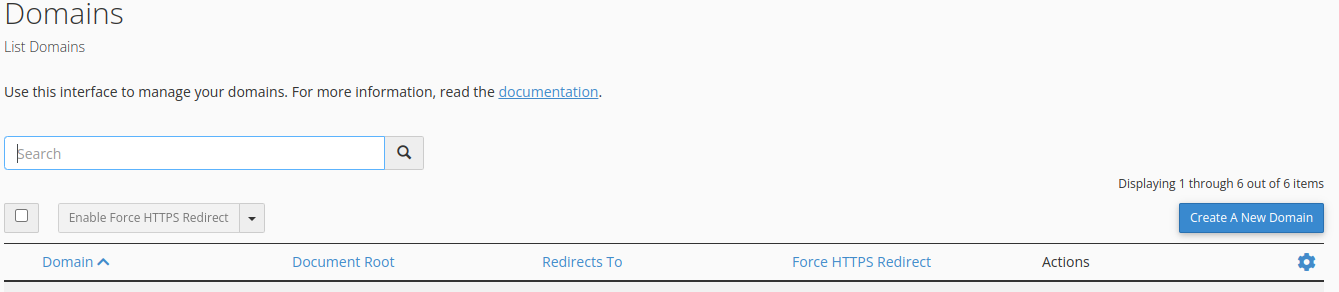
- In the Domain field, type the name without
wwwand withouthttp://, for exampleexample.com. - Decide on the folder:
- for a separate website (an addon domain), untick Share document root. cPanel suggests a folder named after the domain; you can keep it or type another one;
- for a second name of the same website (an alias), leave the box ticked, so the new domain opens the content of the primary domain.
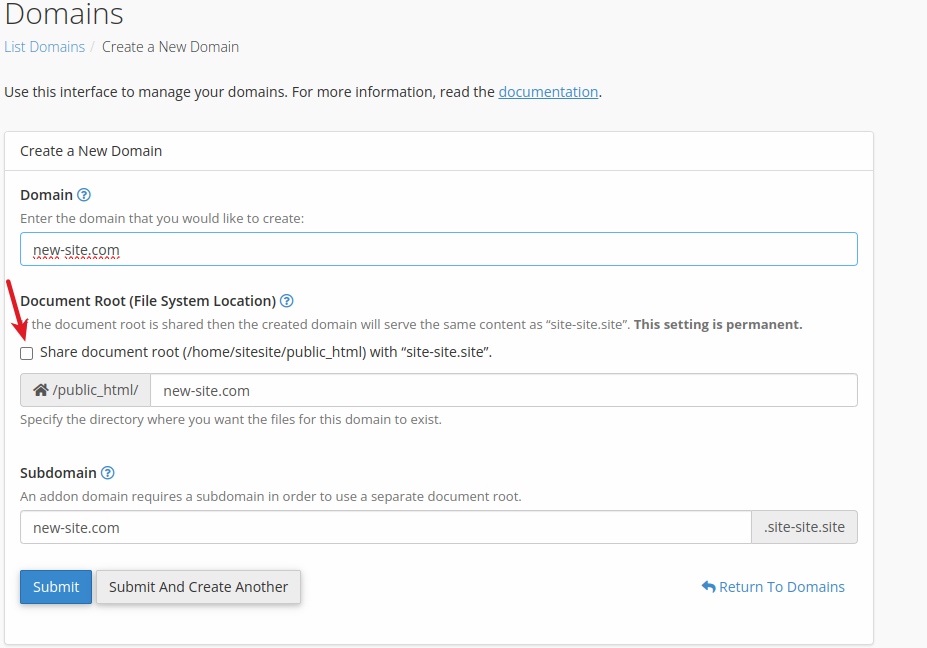
- Click Submit. The domain appears in the list in a few seconds.
For a subdomain, use the same form: type a name such as blog.example.md in the Domain field.
What to do next
- Point the domain to TopHost, if you have not done it yet: changing nameservers for .md and international domains.
- Wait for the SSL certificate. AutoSSL issues it automatically, free of charge, once the domain points to the server; see Free SSL with AutoSSL.
- Put the website in its folder: upload the files (Website upload via cPanel) or install WordPress (How to install WordPress on cPanel).
- Create mailboxes for the new domain if you need them: in Email Accounts, pick the domain from the list (email accounts in cPanel).
What sites in one account share
- Resources. Disk space, CPU and memory are split across every site. One very busy site can slow the others.
- Backups. The daily JetBackup copies cover the whole account, every domain included.
- Access. The cPanel password opens every site. For a contractor, create an FTP account limited to one site's folder instead.
Separate for each domain: its file folder, its e-mail addresses and its free SSL certificate.
Changing the primary domain
The primary domain cannot be changed or removed from cPanel itself. Open a ticket with the current domain and the new one. We review the request and tell you in advance about anything else that needs doing, for instance with existing mailboxes.
Removing a domain you no longer need
In Domains, click Manage next to the domain and choose Remove Domain. Before doing so, download a copy of its folder and of any mailboxes on that domain, so nothing is lost by mistake.
Common mistakes
- Both domains show the same site. Share document root stayed ticked when a separate site was wanted. Remove the domain and add it again with the box cleared.
- The new site's files were uploaded to
public_html. That folder belongs to the primary domain, and the new files can overwrite its site. Move them to the folder of the new domain, and always check which folder you are in. - The domain was added, but the browser shows another site or an error. Its nameservers were never changed, its DNS does not lead to TopHost yet, or the change has not spread; this usually takes a few hours, at most 24 to 48.
- "Not secure" warning in the first hours. The certificate is issued only after DNS points to the server. Give it some time before asking for help.
If cPanel shows an error when adding the domain (for example that it already exists on another account), open a ticket with the domain name and the exact message.
