
Change nameservers for .MD, .COM and other domains in the client area
PrintIn short: the nameservers decide which DNS servers answer for your domain, and therefore where its website and e-mail are looked up. For a domain registered with TopHost, whether .md or international (.com, .net, .org, .eu and others), you change them yourself in the client area, under Domains, in a couple of minutes. If the site is hosted with TopHost, use ns4.tophost.md and ns5.tophost.md.
Which nameservers to enter
| Your situation | Nameservers |
|---|---|
| The website or e-mail is on TopHost hosting | ns4.tophost.md and ns5.tophost.md |
| DNS is managed by another service, such as Cloudflare, or by another host | the names that service gives you |
| International domain without hosting, you only need a few records (A, CNAME, MX, TXT) | dns1.name-services.com to dns4.name-services.com, then DNS Management in the client area (see below) |
| .md domain without hosting, you only need a few records | leave the nameservers as they are and send the records in a ticket (see below) |
Before you change anything
- All DNS moves with the nameservers. Once they change, the records at the old DNS provider stop counting. If e-mail or other services run elsewhere, copy their records (MX, SPF, DKIM, and any CNAME or TXT verification records) to the new DNS provider first, or mail will stop arriving.
- Only the website is moving? You can keep the current nameservers and change just the A record. See A record in cPanel.
- The domain must be active. An expired domain has to be renewed before its nameservers can be changed.
- Type the names cleanly: no
http://, no spaces and no final dot.
Changing the nameservers, step by step
The steps are the same for .md and for international domains.
- Log in to the TopHost client area with your e-mail address and password.
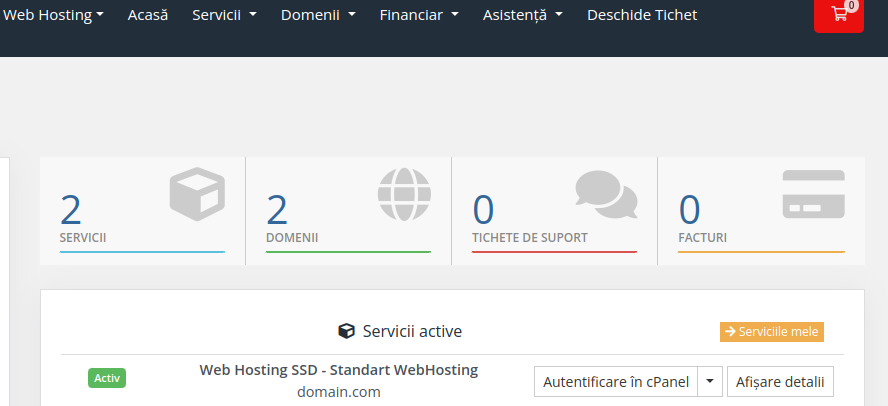
- Open Domains from the main menu or from the dashboard.
- Click the domain you want to change (its row, or the Active status next to it).
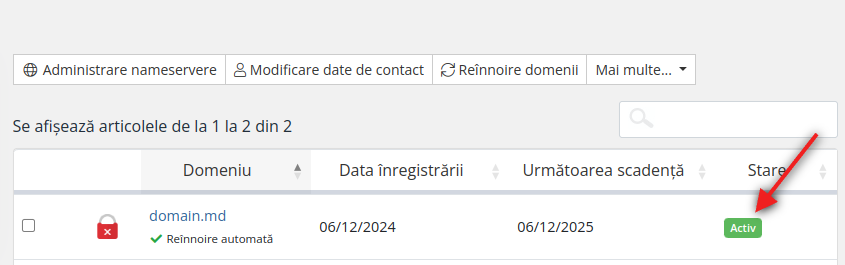
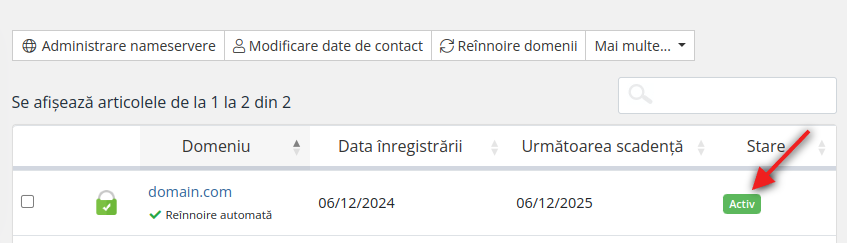
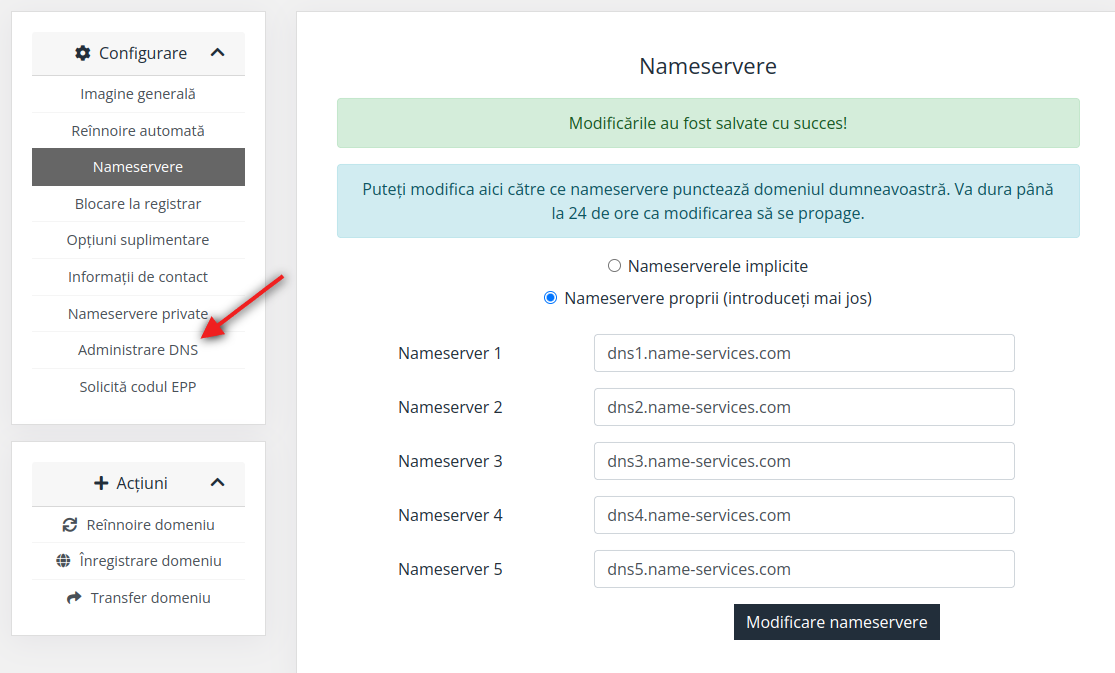
- On the domain page, open the section for changing the nameservers the domain points to.
- Select the custom nameservers option and type the new names, one per field. Fill in at least two; there is room for up to five.
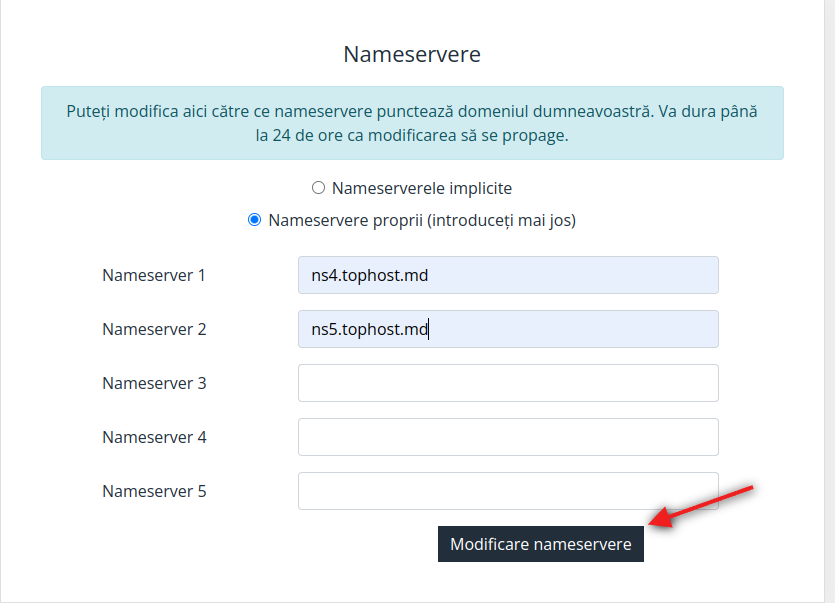
- Check the spelling and save with the button below the fields.
To return to the TopHost nameservers later, choose the default nameservers option and save, or type ns4.tophost.md and ns5.tophost.md by hand.
DNS records without hosting
If you only have the domain with us and want it to point to an external service (a website builder, a mail service, a verification code), you do not need DNS servers of your own.
International domains: DNS Management in the client area
When the domain uses dns1.name-services.com to dns4.name-services.com, its records are edited directly in the client area:
- Open the domain page and click DNS Management in the left menu.
- Fill in the host name, the record type and the value, then save. Add one row for each record the external service asks for.
.md domains: we add the records for you
Write down the records you need, with type, name and value (for example: A record for example.md with address 203.0.113.10; MX record with priority and mail server), and send them in a support ticket. We add them and confirm by reply when they are in place.
Keep in mind that the DNS Management page has no effect if the domain uses other nameservers. With ns4.tophost.md and ns5.tophost.md, records are managed in cPanel (A record, MX record, TXT record).
How long the change takes
The registry accepts the change almost at once. Most visitors see the new DNS within a few hours, but DNS caches around the world can take up to 24 to 48 hours to refresh. During this time some people may still reach the old server. To check the nameservers the internet already sees, run nslookup -type=NS example.md in a terminal or the Windows command prompt. You can open your site on the new server before then, as shown in How to access the site while it is being delegated.
If it does not work
- There is no nameserver option for the domain: it is probably registered with another company. Change the nameservers in that company's panel, or move the domain to TopHost as described in Domain transfers.
- The new nameservers are rejected or saving shows an error: check for typos and make sure the DNS servers exist and already know your domain. If the error stays, open a ticket with the domain and the nameservers you tried to set.
- Mail stopped arriving after the change: the MX records of your mail service are missing at the new DNS provider. Add them there.
- The site still does not open after 48 hours: open a ticket with the domain name and the nameservers you set.
Questions clients ask
Does changing nameservers affect ownership or a transfer?
No. The domain stays registered with TopHost and in your name. Moving it to another registrar is a separate procedure, described in Domain transfers.
How many nameservers do I have to fill in?
At least two. Use exactly the names your DNS provider gives you, in the order it lists them.
