
Install OpenCart in cPanel: set up an online store with Softaculous
PrintIn short: OpenCart is installed from cPanel through Softaculous Apps Installer, in the E-commerce category. You choose the domain, set the administrator account, and Softaculous creates the store files and the database. After that a few settings (readable links, e-mail, currency) make the shop ready for customers.
OpenCart is a free, light store platform: products, categories, orders, customers and payment or delivery extensions in one application. It suits small and medium shops that want a dedicated e-commerce system rather than a plugin on top of a blog.
Before installing
- Softaculous Apps Installer is part of the Web Hosting SSD plans. On WordPress Hosting and Business Hosting, if you need OpenCart and Softaculous is not in your cPanel, ask us in a ticket.
- The domain must be on the hosting account (see How to add a domain to cPanel) and the folder where the shop goes must not hold another site.
- A store handles customer data and payments, so it should run on HTTPS from day one. Wait until the free certificate is issued (see Automatic issuance of SSL).
Install OpenCart step by step
- Sign in to cPanel (from the client area: Services, your hosting service, then the cPanel login button).
- In the Software section click Softaculous Apps Installer.

- In the Softaculous menu on the left open E-commerce and click OpenCart.
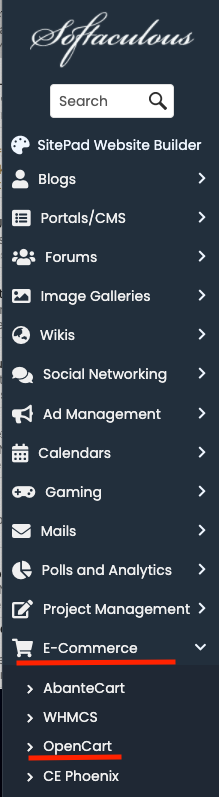
- Click Install Now.

- Complete the form:
- Choose Protocol:
https://. - Choose Domain: the store's domain.
- In Directory: empty if the shop opens directly on the domain, or a folder name for an address like
example.md/shop. Check it: the field may already contain a suggested folder. - Store name and administrator account: the shop name, a username other than "admin", a long unique password and an e-mail address you read.
- Database: created automatically; leave the suggested name unless you have a reason to change it.
- Choose Protocol:
- Click Install and wait for the end of the progress bar. The final screen gives the store address and the administrator address.
First settings in the store
Sign in to the administrator panel, usually at https://example.md/admin (use your own domain). If the final Softaculous screen shows a different admin address, keep that one.
- Security notice. Recent OpenCart versions show a notice in the dashboard asking you to move the storage folder out of the public folder and to rename the admin folder. Follow it: it takes a minute and makes attacks harder.
- Readable product links (SEO URLs). OpenCart ships the rules in a file named
.htaccess.txt. In File Manager rename it to.htaccess, then in OpenCart open System, Settings, edit the store and turn on Use SEO URLs in the Server tab. The default content of this file is in The default .htaccess file for popular CMS. - E-mail from the store. Create a mailbox on your domain (see How to create e-mail accounts in cPanel) and enter it in the Mail tab of the store settings, using the server details from Setting up mail clients. Shared hosting blocks connections to outside SMTP servers and allows up to 400 e-mails per hour per account (see Restrictions on the mail service).
- Currency, country, taxes. Check the default currency, the countries you ship to and the tax classes under System, then Localisation.
- Extensions. Install payment, delivery and theme extensions only from the official OpenCart Marketplace or from known developers, and make a backup before each one.
Common problems
"You do not have permission to access the API" when editing an order
OpenCart's administrator panel talks to the store through an internal API user that only accepts listed IP addresses. Open System, Users, API, edit the default API user and add your current IP address in the IP Addresses tab.
Product pages return 404 after turning on SEO URLs
The .htaccess file is missing or still called .htaccess.txt. In File Manager enable Show Hidden Files (dotfiles) in Settings to see it, then rename or create it.
White page or error 500
Usually a PHP version or extension that the OpenCart version does not support, or a faulty extension. Check the last lines in cPanel under Metrics, then Errors, adjust PHP as shown in PHP version selection and read HTTP 500 or 503 on your site: causes and fixes.
If the store still does not work, open a ticket with the domain and the exact error message.
Other store platforms
Not sure OpenCart is right for you? Compare it with WooCommerce on WordPress, PrestaShop or, for large catalogues, Magento.
