
How to create an email account on your domain in cPanel
PrintAn address such as office@your-domain.md is created in cPanel, under Email, then Email Accounts, with the Create button. TopHost hosting plans include an unlimited number of mailboxes; their content uses the disk space of your hosting account.
Create the mailbox
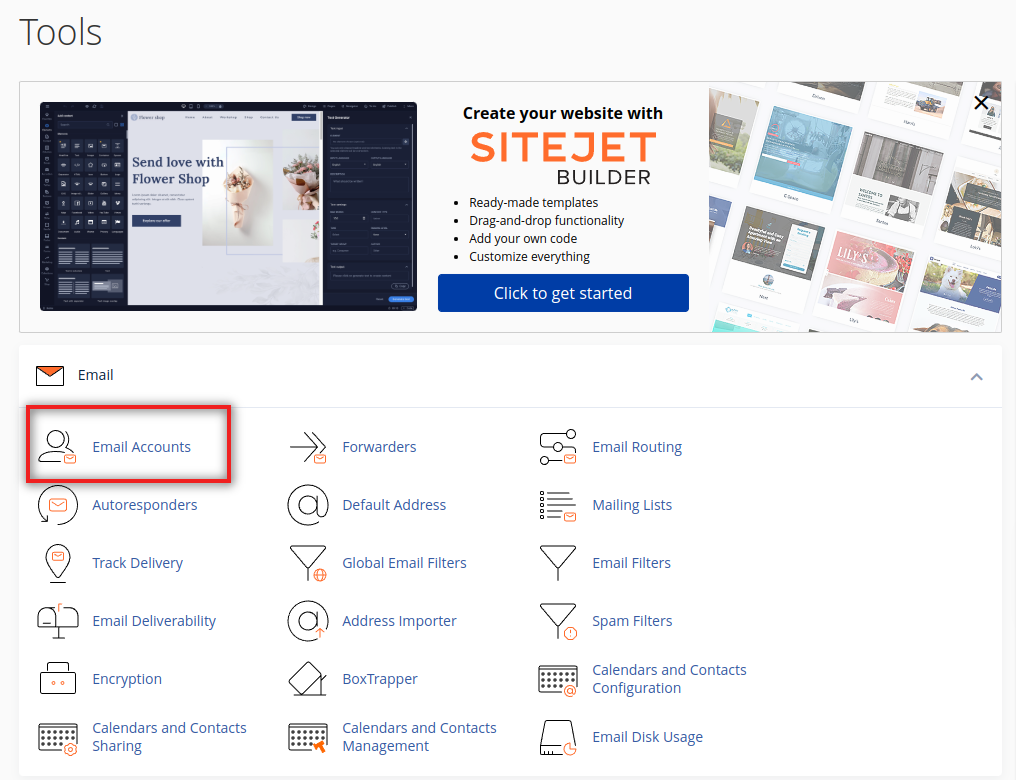
- Log in to cPanel and open Email Accounts in the Email section.
- Click Create, above the list of addresses.

- If the account has several domains, choose the right one in Domain.

- In Username, type the part before the @, for example
office. Letters, digits, dots, hyphens and underscores are allowed. - Set the password. Use Generate for a long random one and save it in a password manager before you leave the page. If the mailbox is for a colleague, cPanel can instead send them a link to an alternate address so they choose the password themselves.
- Under Optional Settings, set Storage Space: a size in MB or Unlimited. You can change it later.
- Click Create. The address works at once.
After creating it
The new address appears in the list with three buttons:
- Check Email opens the mailbox in webmail;
- Connect Devices shows the server names and ports for Outlook or a phone, see the mail client settings;
- Manage lets you change the password and the storage space, temporarily stop receiving, sending or logging in, or delete the mailbox.
How much space to give a mailbox
Unlimited means the mailbox can grow until the disk space of the hosting account runs out, and then the site suffers too. A fixed quota per mailbox keeps one busy address from filling the whole account. When a mailbox reaches its quota, new messages are refused; see Full mailbox: how to make room. The overall usage is shown in Disk Usage.
Common mistakes
- The address was created on the wrong domain. It cannot be moved; delete it and create it again on the right one.
- Mail does not arrive in the new mailbox. If the domain's MX records point to another service (for example Google Workspace or Microsoft 365), mail is delivered there and not to cPanel. Check the steps in Emails are not arriving.
- A weak password. Mailboxes with simple passwords are guessed and used to send spam, and then the whole hosting account can be suspended. Use a long unique password for each address.
Next steps for a new domain
- Check that SPF, DKIM and DMARC are in place, so that your messages do not go to Spam: SPF and DMARC step by step and DKIM records.
- Set up forwarding if messages should also reach another address.
- Read the email limits on shared hosting before sending a newsletter.
