
Email client settings: IMAP, POP3 and SMTP for your mailbox
PrintTo connect a TopHost mailbox to Outlook, Thunderbird, a phone or any other mail program you need four things: the server name, the ports, your full email address as the user name and the mailbox password. cPanel shows the exact values for each mailbox on its Connect Devices page, so you never have to guess them.
Where to find the settings in cPanel
- Log in to cPanel and open Email, then Email Accounts.
- Find the address you want to use and click Connect Devices in its row.
- Scroll to Mail Client Manual Settings and use the block Secure SSL/TLS Settings (Recommended). Ignore the non-SSL block: it sends your password without encryption.
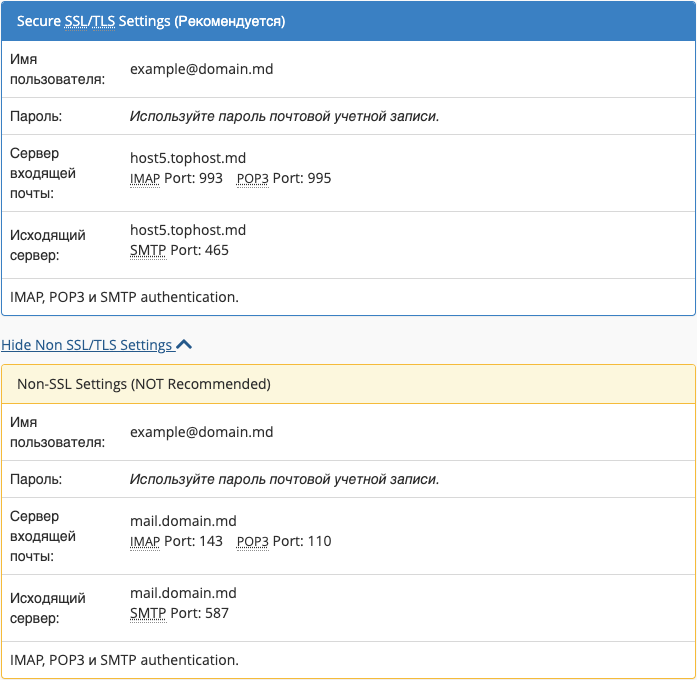
The values to enter
| Setting | Value |
|---|---|
| User name | the full address, for example office@your-domain.md |
| Password | the password of this mailbox (not the cPanel or client area password) |
| Incoming server | the name shown under Incoming Server, usually mail.your-domain.md |
| IMAP port | 993, encryption SSL/TLS |
| POP3 port | 995, encryption SSL/TLS |
| Outgoing server (SMTP) | the name shown under Outgoing Server, usually the same as the incoming one |
| SMTP port | 465, encryption SSL/TLS |
| SMTP authentication | required, with the same user name and password as for incoming mail |
Copy the server name exactly as cPanel displays it. Sometimes the secure block shows the name of the hosting server instead of mail.your-domain.md; this happens when the certificate does not yet cover the mail subdomain. Using that name avoids certificate warnings in your program.
IMAP or POP3?
- IMAP keeps the messages on the server and shows the same folders on every device. Choose it if you read mail on a phone and a computer, or also use webmail.
- POP3 downloads the messages to one device. If the program deletes them from the server after download, they disappear from your phone and from webmail. POP3 suits a single computer with a local archive; set the program to leave a copy on the server for some days.
Automatic setup
On the same Connect Devices page, the section Mail Client Automatic Configuration Scripts offers ready-made profiles for some programs and systems (for example Apple Mail on iPhone and Mac). Download the one for your program and open it on the device. Thunderbird usually finds the settings by itself after you enter the address and password; check that it picked SSL/TLS with ports 993 and 465.
Step-by-step guides for popular programs
- Mail on iPhone and iPad
- Microsoft Outlook
- On Android, in the Gmail app choose Add another account, then Other, and enter the same values as in the table.
- No program at all: open the mailbox in a browser, see webmail.
Frequent mistakes
- User name without the domain. Enter
office@your-domain.md, not justoffice. - Outgoing authentication switched off. Without it the server refuses to send and the program shows an authentication or relay error.
- Checking for new mail too often. A mailbox accepts at most 50 logins per hour. Every phone, computer and tablet counts, so set an interval of 5 minutes or more. All limits are listed in Email limits on shared hosting.
- An old password saved on one device. Repeated failed logins can make the server firewall block your IP address for everyone in your office. See why the firewall blocks an IP.
- DNS managed outside TopHost. If you use another DNS service, for example Cloudflare, the
mailrecord must point straight to the hosting server and must not be proxied.
Still not working?
If webmail works but the program does not, the problem is in the program settings; compare them with Connect Devices once more. If even webmail does not receive new messages, follow Emails are not arriving. You can also open a ticket: write the address, the program you use and the exact error text.
